Get a WeRead API Key
WeRead note synchronization relies on the official WeRead Skill API. Simply generate a private API Key and paste it into Yomitomo under Settings > Data Sources > WeRead to enable secure, incremental synchronization.
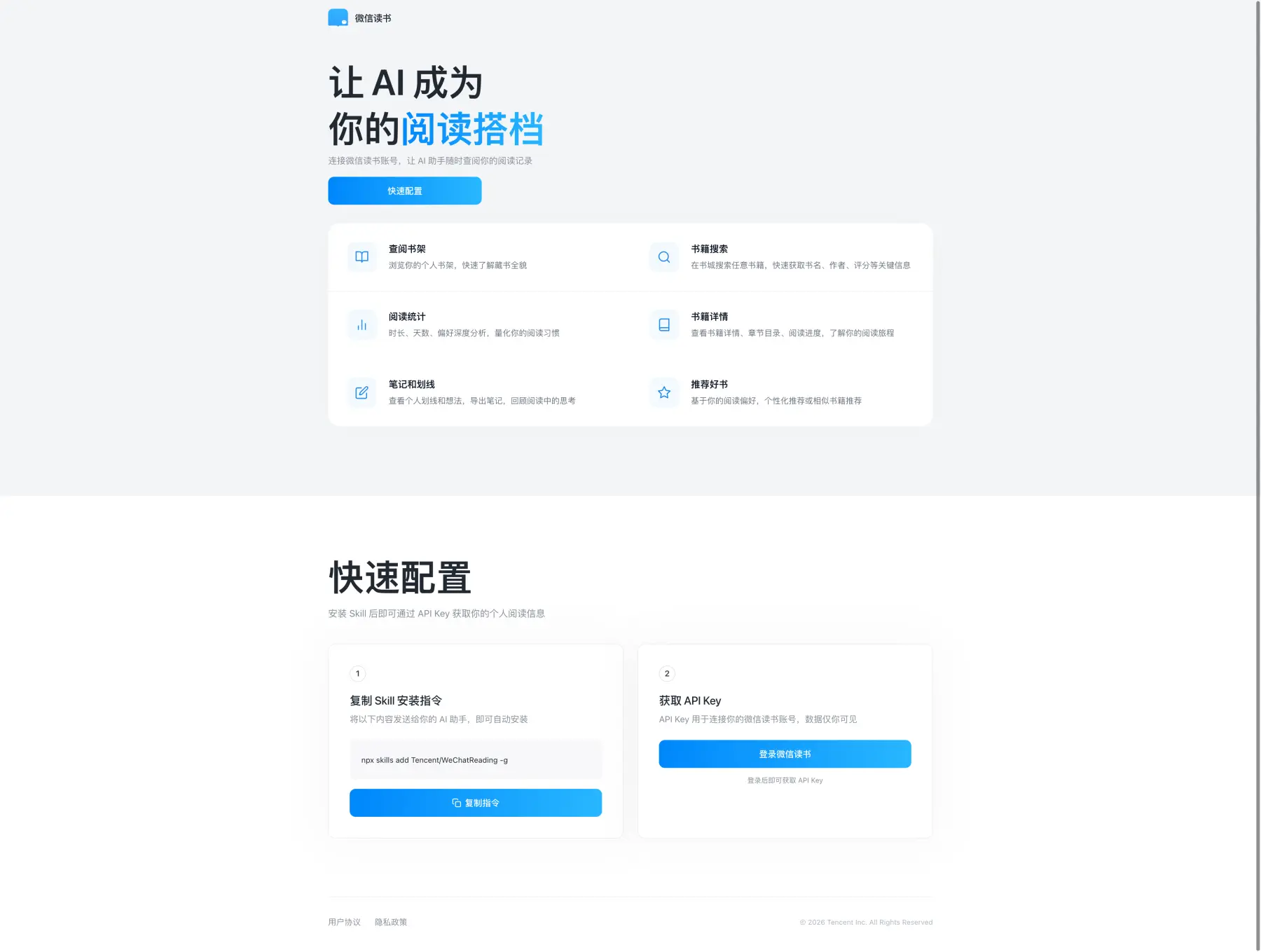
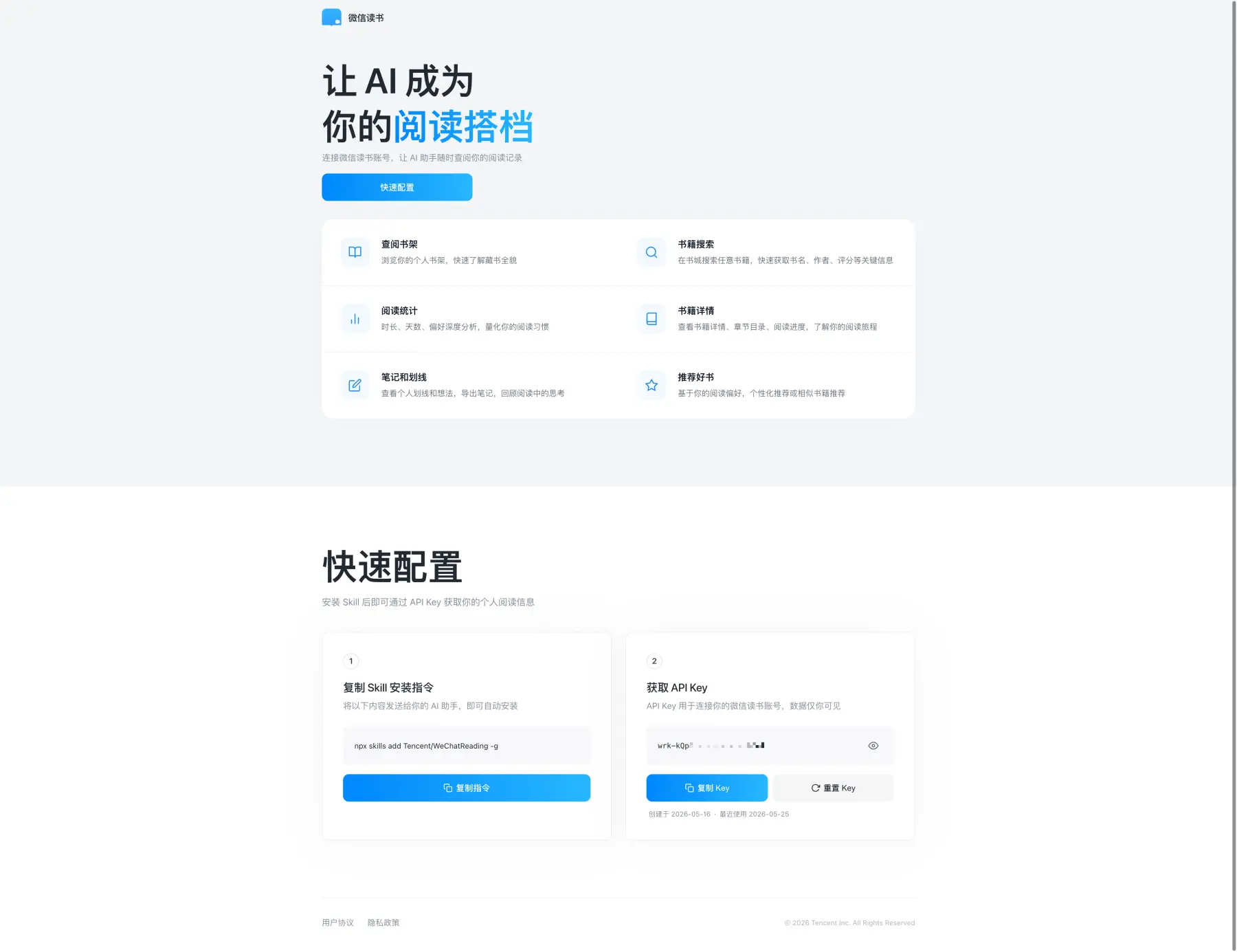
Method 1: Web Browser
Section titled “Method 1: Web Browser”- Open the official WeRead Skill Portal in your browser.
- Click Quick Configuration in the center of the page.
- Sign in using your WeRead account (QR code scan).
- In the Get API Key section, click to generate a new key, or copy your existing one.
- Return to Yomitomo, navigate to Settings > Data Sources > WeRead, paste the key, and click Save.
Method 2: Mobile App
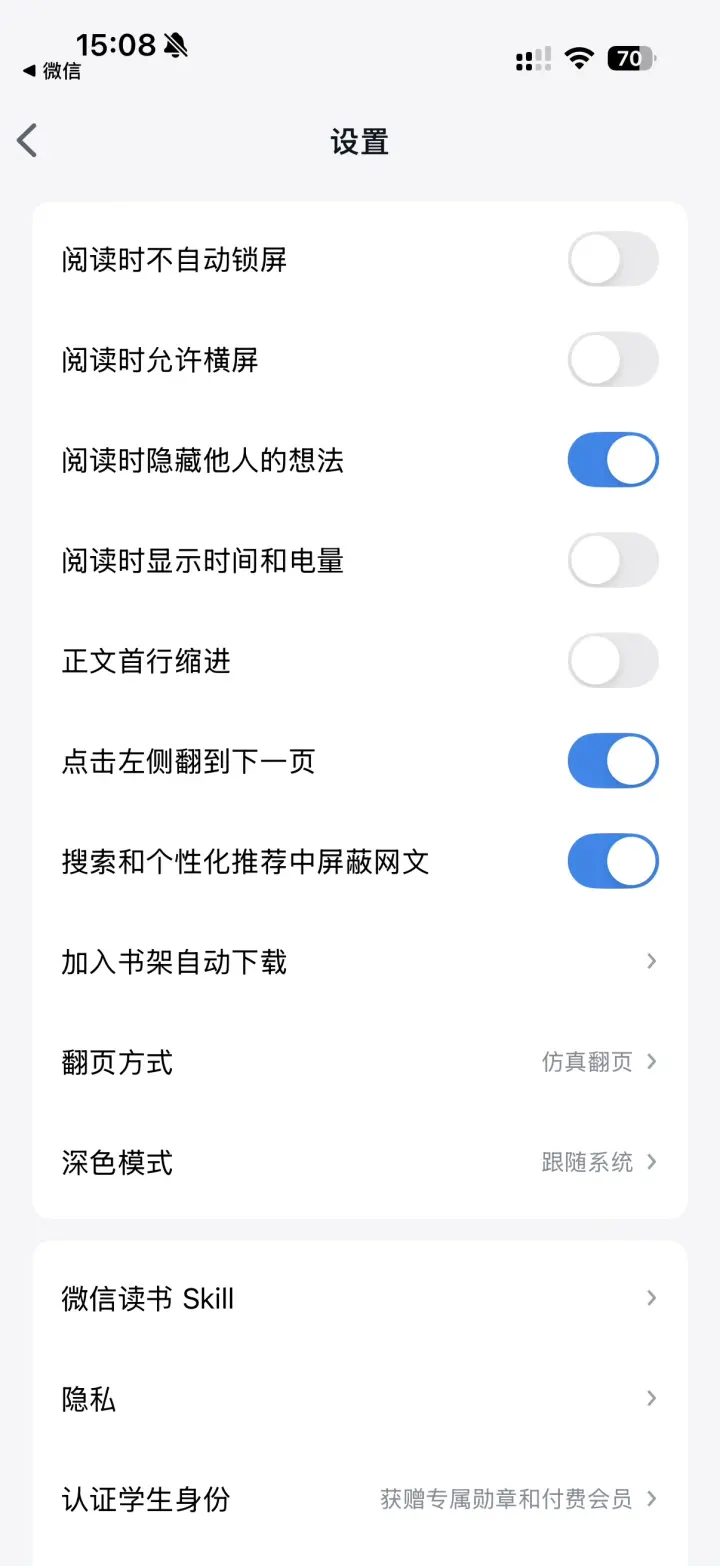
Section titled “Method 2: Mobile App”- Open the WeRead app on your phone and ensure you are logged in.
- Tap the Me tab at the bottom right.
- Tap the menu/settings icon in the top right corner.
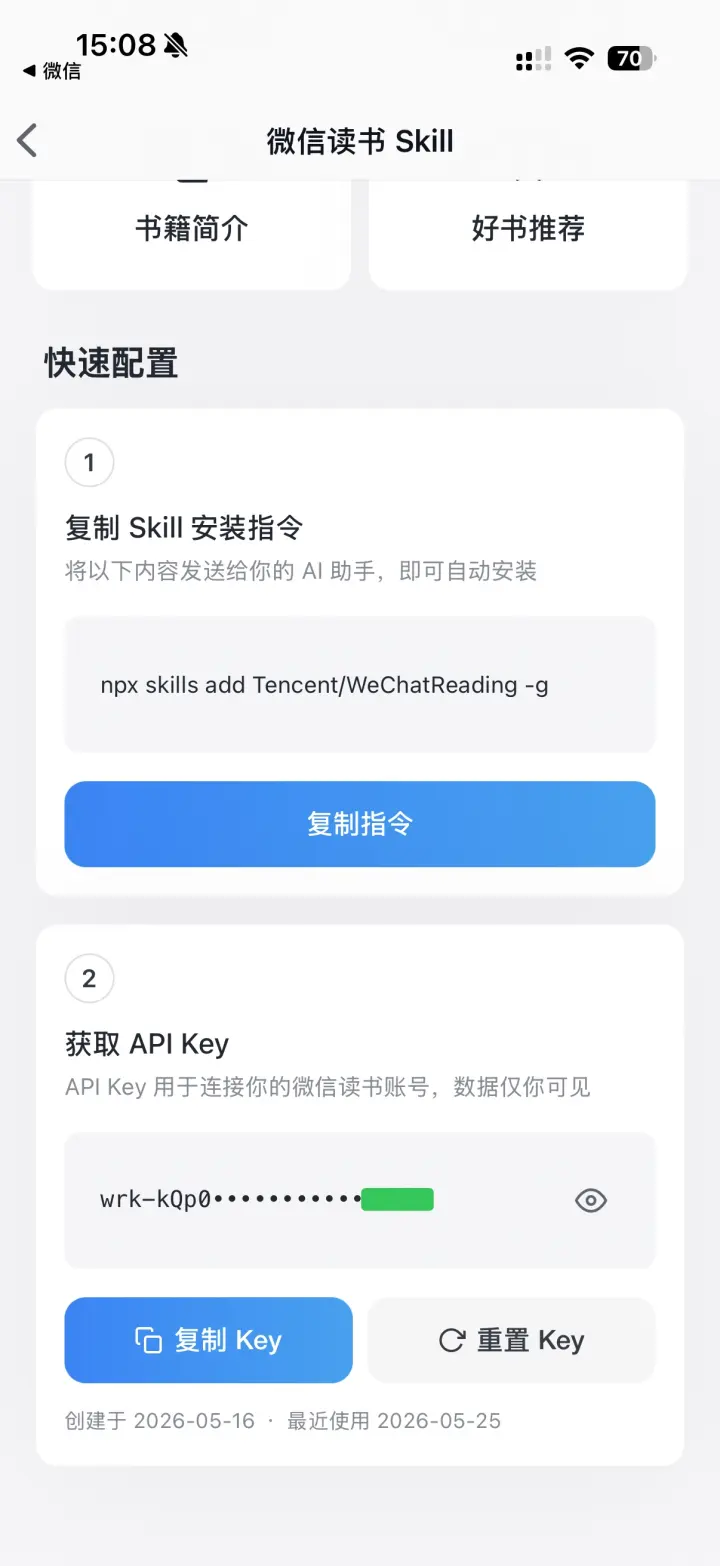
- Scroll down through Settings to find and select WeRead Skill.
- Scroll to the Get API Key section.
- Generate or copy your API Key.
- Return to Yomitomo, paste the key into Settings > Data Sources > WeRead, and click Save.

Verify and Test Connection
Section titled “Verify and Test Connection”After saving your key in Settings > Data Sources > WeRead, click Test Connection. Once verified, you can return to the Library and click Sync WeRead to import your books, highlights, and thoughts straight into your local reading space.