Reader, Annotations, and Discussions
The Reader seamlessly integrates full-text reading, precise text anchoring, discussion threads, and distilled notes into a single cohesive workspace. You can instantly jump back from any note to its exact context in the original text, ensuring your insights never lose their grounding.
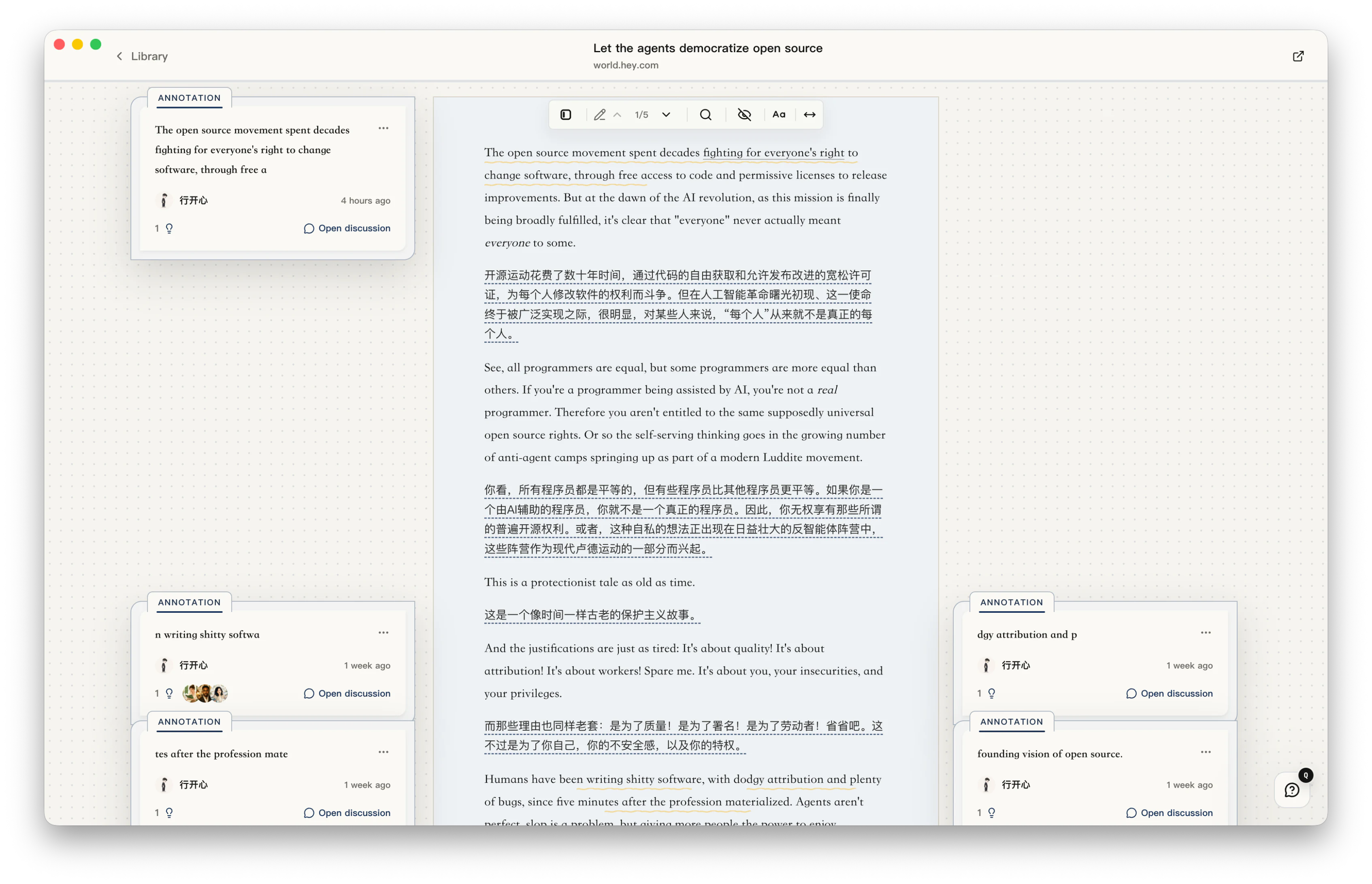
Reading Workspace and Controls
Section titled “Reading Workspace and Controls”The Reader is composed of the main reading canvas, anchored highlight highlights, visual connection trails, and a dedicated sidebar. The floating toolbar provides instant access to essential tools:
- Table of Contents (TOC): Expand the chapter hierarchy. The active section is highlighted and centered automatically, making it easy to track your reading progress.
- Full-Text Search: Search keywords across the current document and jump directly to matches.
- Highlight Navigation: Cruise forward and backward between highlights without manual scrolling.
- Persistent Assistant Chat: Ask questions about the entire document at any time with multi-turn context retention.
- Bilingual Translation: Translate web articles paragraph by paragraph with visual status indicators on modified blocks.
Typography and Visual Styling
Section titled “Typography and Visual Styling”- Web Articles and Ebooks: Adjust Font Size and Article Width to match your reading preferences.
- PDFs: Use PDF Zoom to achieve optimal readability.
- Themes and Reader Paper: Switch themes (Light, Dark, Dusk Indigo) and paper textures from the main home page. Paper styles apply across articles, ebooks, and PDFs. In dark mode, PDFs preserve their original page colors to avoid inverted, unreadable diagrams.
Create Highlights and Thoughts
Section titled “Create Highlights and Thoughts”- Select any text in the reading area.
- Drag the handles at both ends of the selection to fine-tune boundaries without re-selecting (supported across web articles, ebooks, and PDFs).
- Press the default shortcut
Aor click the annotation button on the floating menu. - Record your immediate reaction, question, or analysis.
Highlights appear in your personalized color and remain anchored to their exact source coordinates. Highlight creation and text copying can provide tactile audio feedback (configurable in Settings > General).
Highlight Discussion Threads
Section titled “Highlight Discussion Threads”Every highlight comes with its own focused discussion thread. Click any annotation card to enter the discussion view:
- Add ongoing reflections or reply to earlier thoughts.
- Type
@assistant_nameto bring specialized AI companions into the conversation. Responses are generated using document context, the highlighted snippet, and the full discussion thread. - Pin key thoughts, delete outdated notes, and switch seamlessly between split and left-aligned layouts.
Distillation
Section titled “Distillation”When your reflections around a passage mature into a concrete takeaway, framework, or actionable insight, open the Distillation Window. You can synthesize scattered notes into a polished draft and receive structured review feedback with live diff previews. See “Distilled Notes and Review”.
Essential Shortcuts
Section titled “Essential Shortcuts”| Shortcut | Action |
|---|---|
C |
Copy selected text |
A |
Create a highlight from selected text |
Q |
Ask AI about selected text |
All shortcuts can be customized in Settings > Shortcuts.